This guide explains how to add or remove users, staff, or third-party collaborators from a GoHighLevel workspace. This is important for maintaining security and flexibility when working with teams or external professionals.
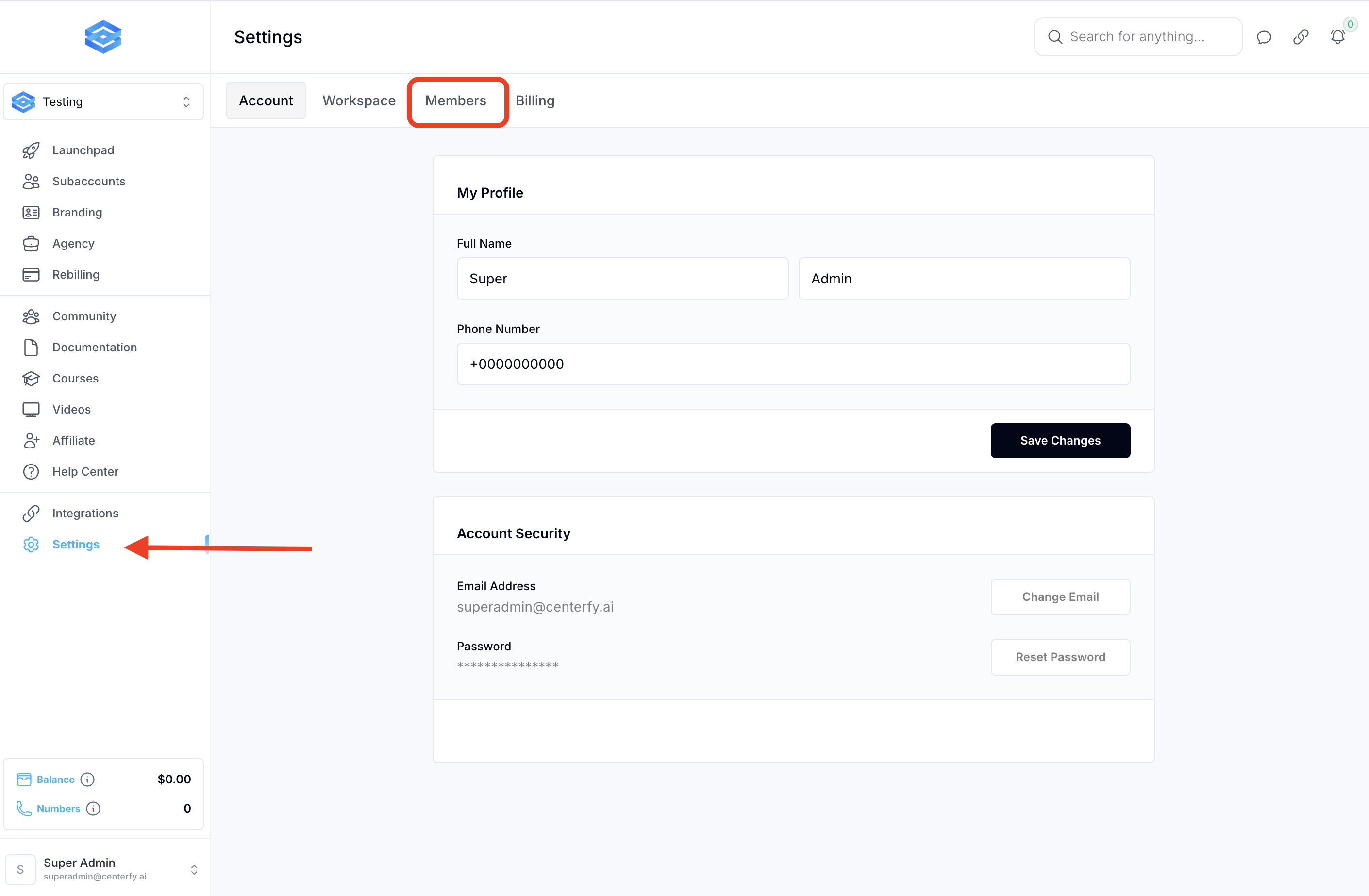
Go to Settings, then click on Members.
Then Click “Invite Members”
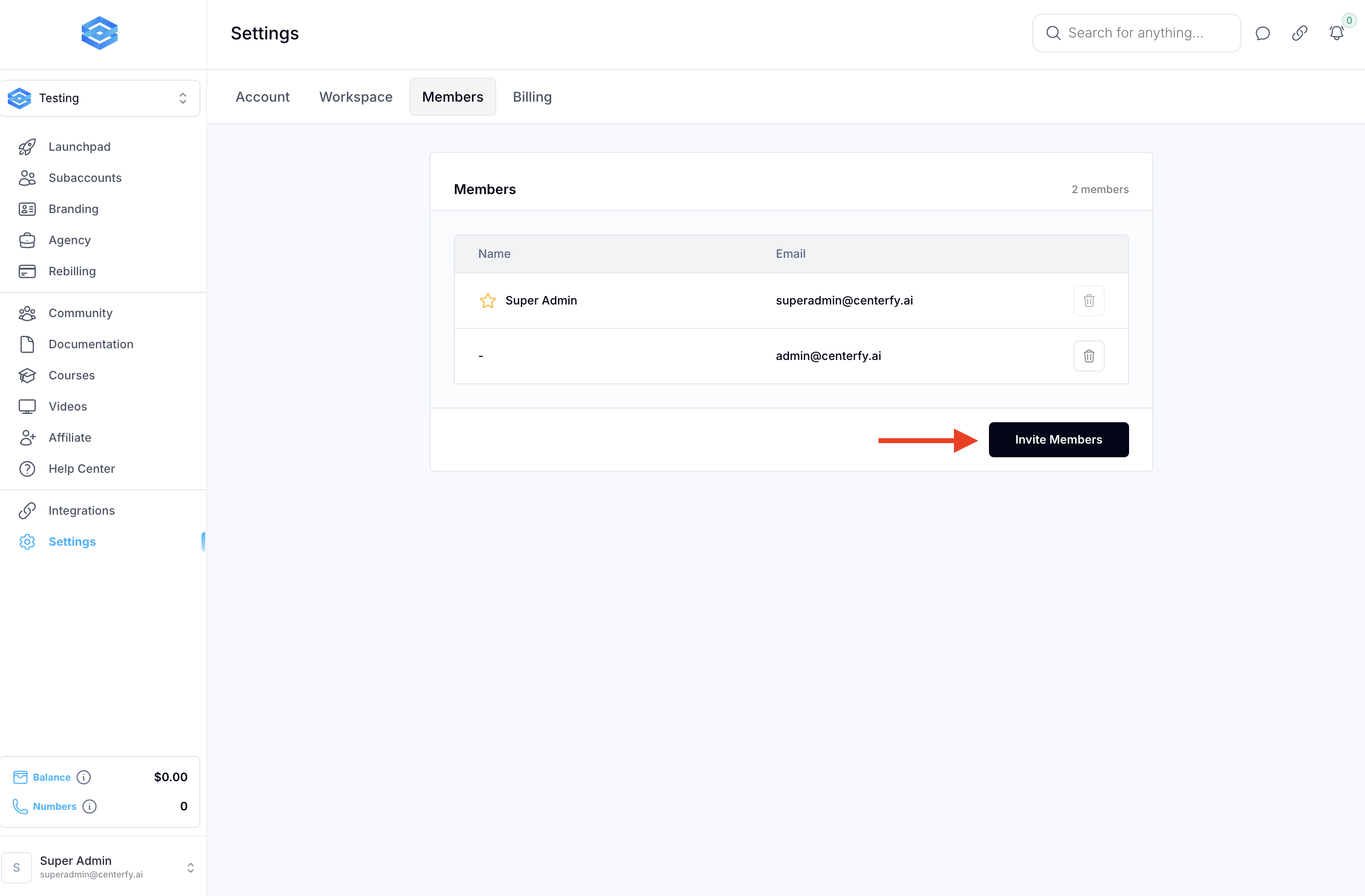
Click on “Invite Member.”
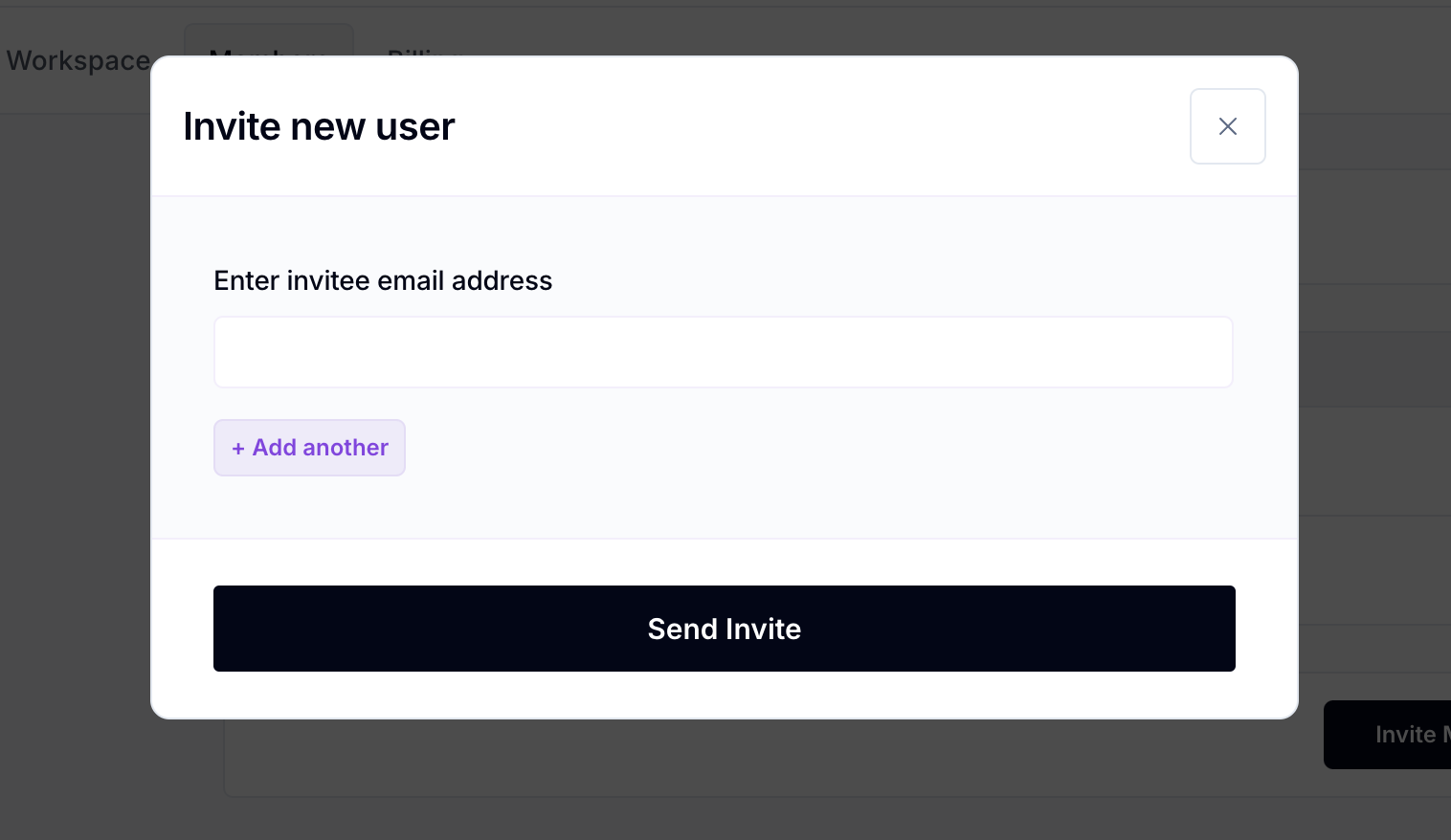
Enter the person's email address.
Click Send Invite.
-If the email isn’t already tied to a GoHighLevel account, one will be generated automatically.
-The invitee will receive an email notification that they've been added.
While still in Settings > Members, find the user you want to delete.
Click the trash can icon labeled “Remove.”
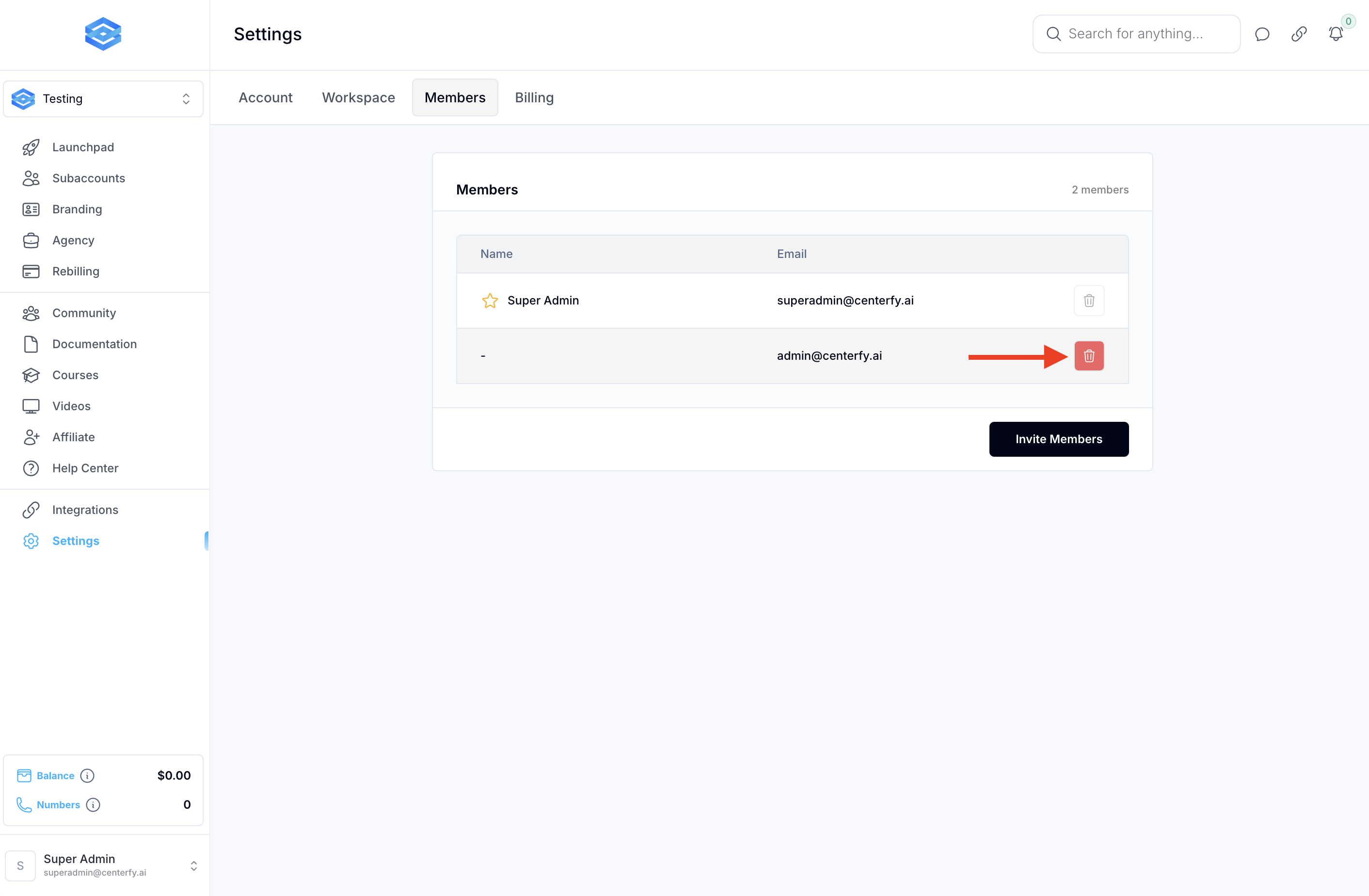
That person will be instantly removed and lose all access to the workspace.
Q: What if the user doesn’t have a GoHighLevel account?
A: One will be automatically created, and they’ll receive an email to set their password.
Q: Will the user be notified if I remove them?
A: No, but their access will be disabled right away.
Q: Can I send invites to multiple people at once?
A: No, invitations must be sent one by one using individual email addresses.
