Purpose:
This SOP helps you or your team add a helpful, easy-to-access link to the GHL left-side menu for quick access to AI support documentation.
Login to GoHighLevel as the agency account (must have admin access).
In the left navigation panel, go to:
Agency > Settings > Custom Menu Link
Click the “Add” button in the top right.
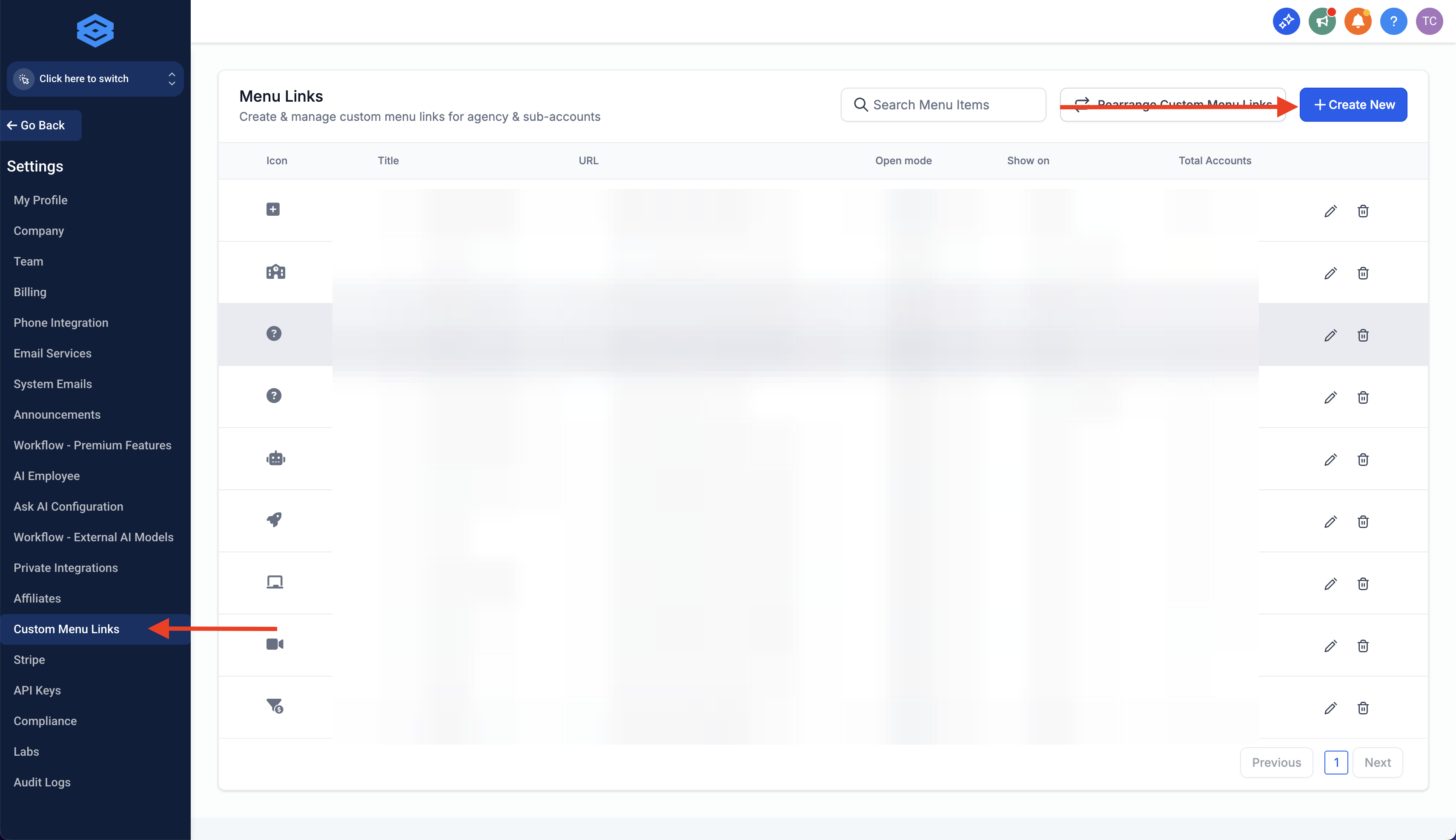
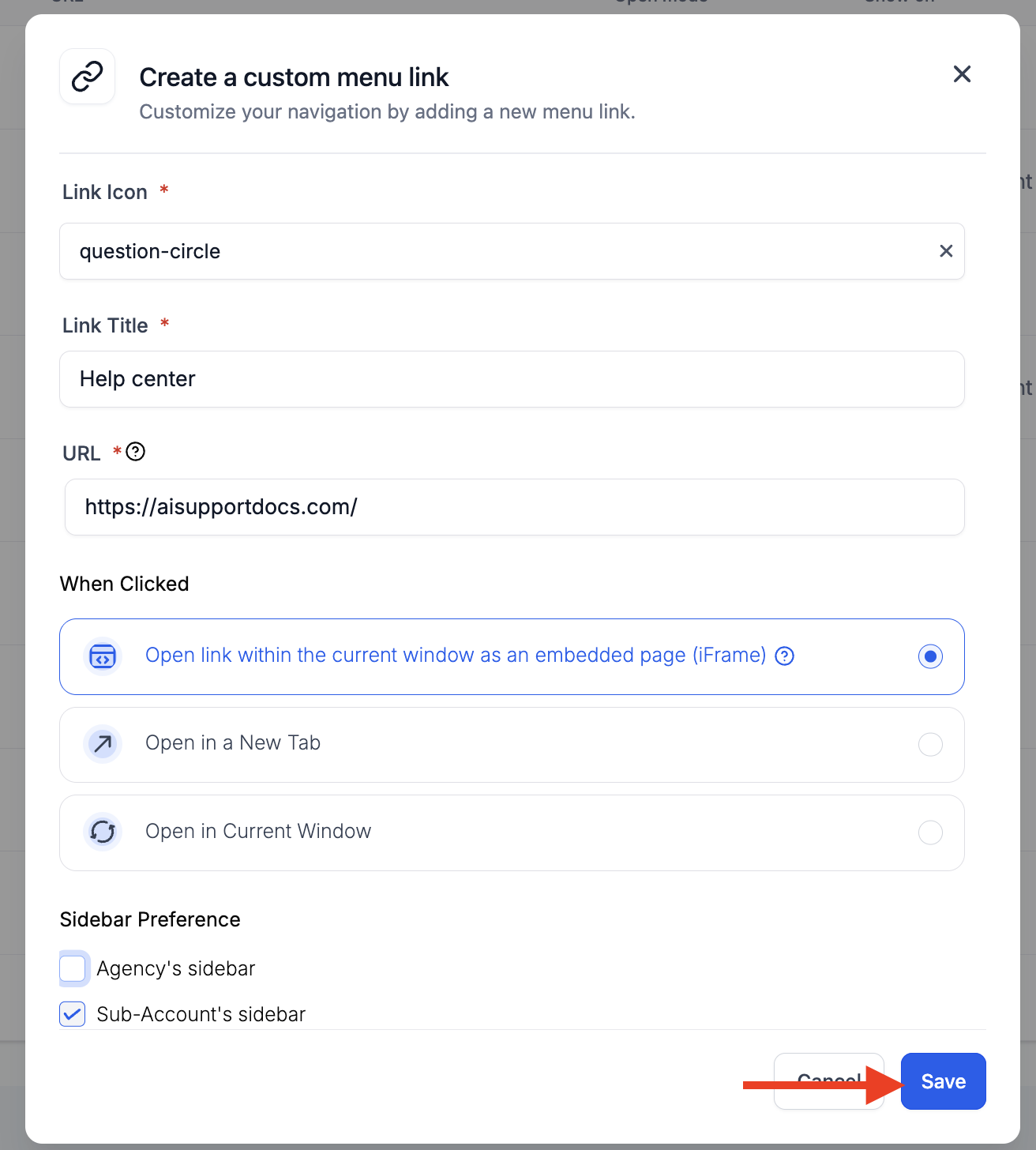
Fill out the menu link details:
Name:
AI Support Docs (or any name you prefer)
Link:https://aisupportdocs.com/
Open in New Tab:
✅ Recommended to keep users in GHL while still viewing the docs.
Click “Save”.
Refresh the app or prompt users to refresh—your new menu link will appear in the sidebar for all sub-accounts.
Q: Who can see the custom menu link once added?
A: It will be visible to all sub-account users within your agency unless you restrict it using visibility settings (e.g., roles or permissions if supported by GHL updates).
Q: Can I make this link open inside the GHL dashboard instead of a new tab?
A: Yes, but it’s not recommended unless the destination is fully mobile-responsive and embeddable. Use “Open in New Tab” to preserve GHL's layout and avoid breakages.
Q: Can I add icons or reorder menu links?
A: Yes
Q: How do I edit or delete the link later?
A: Go to the same area:
Agency > Settings > Custom Menu Link, then click the Edit or Trash icon next to the link you want to change or remove.
Q: Can I add multiple custom links?
A: Yes! You can add as many as needed—ideal for linking to training hubs, terms, client onboarding, or white-label resources.
