The AI Chat Overview explains how your AI Assistant can respond to messages without needing any workflows, webhooks, or API calls. This is powered by Active Tags—a simple and flexible system that controls when and how your AI engages with contacts inside your CRM or communication platform.
By using Active Tags, you can dynamically assign AI behavior to contacts, automate conversations, and switch assistants on or off with ease—all from inside your existing CRM environment.
No Active Tag = The AI will not respond, but it will log and store the conversation.
Active Tag Present = The AI will automatically respond using the assistant linked to that tag.
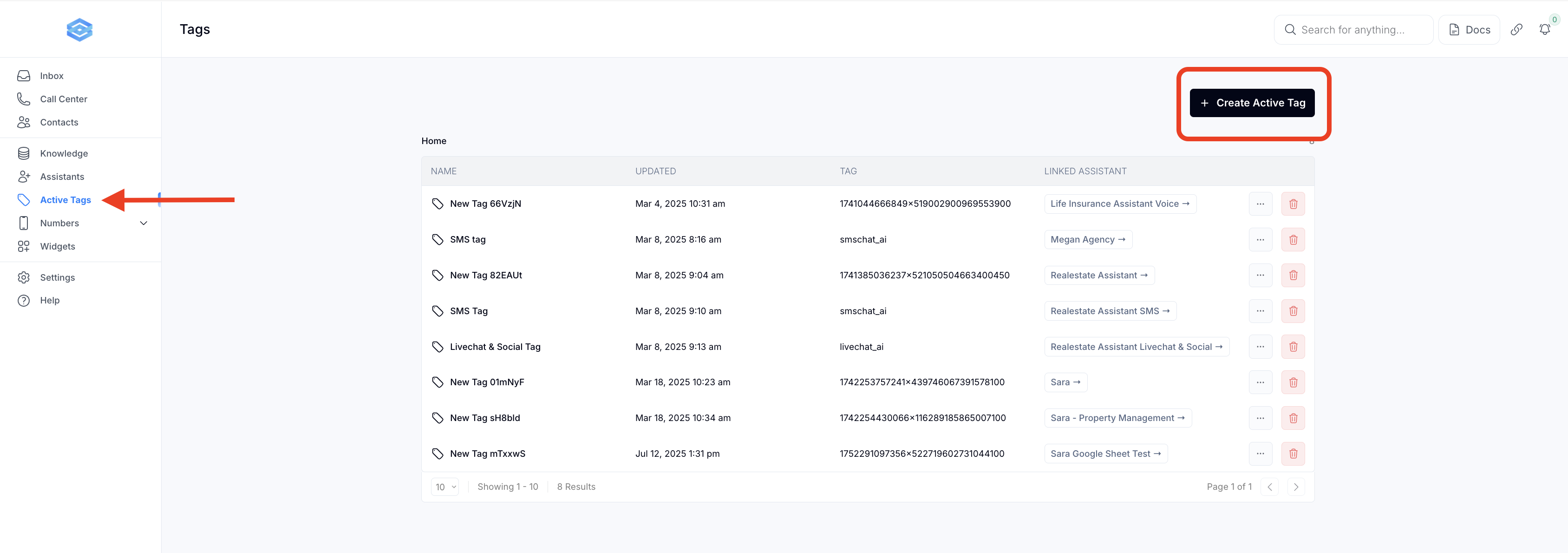
You can assign an active tag to the Ai Assistant in the active tags section of the workspace
Go to the "Active Tags" section in the sidebar.
Create a unique tag name (e.g., smschat_ai, livechat_ai etc.)
Assign that tag to your preferred AI Assistant.
Pro Tip: You can reuse Active Tags across workflows. Changing which assistant is linked to a tag won’t break your existing automation.
To enable AI chat for a specific contact:
Add the assigned Active Tag to the contact.
Options to do this:
Enroll the contact in a workflow that applies the tag
Use a trigger like “Form Submitted” to automatically apply the tag when a user takes action
*Note that you should already have these setup in GoHighlevel as part of your snapshot:
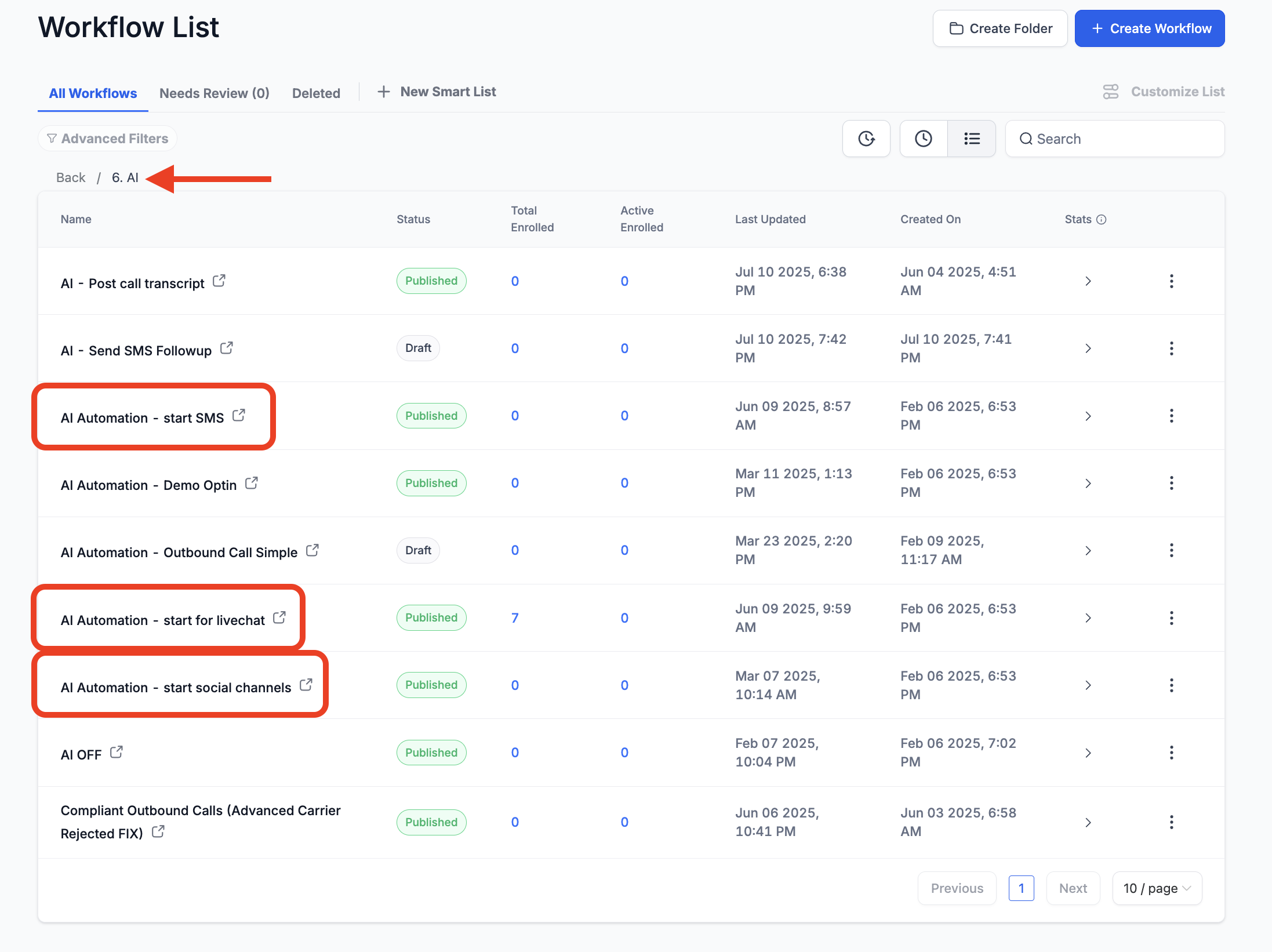
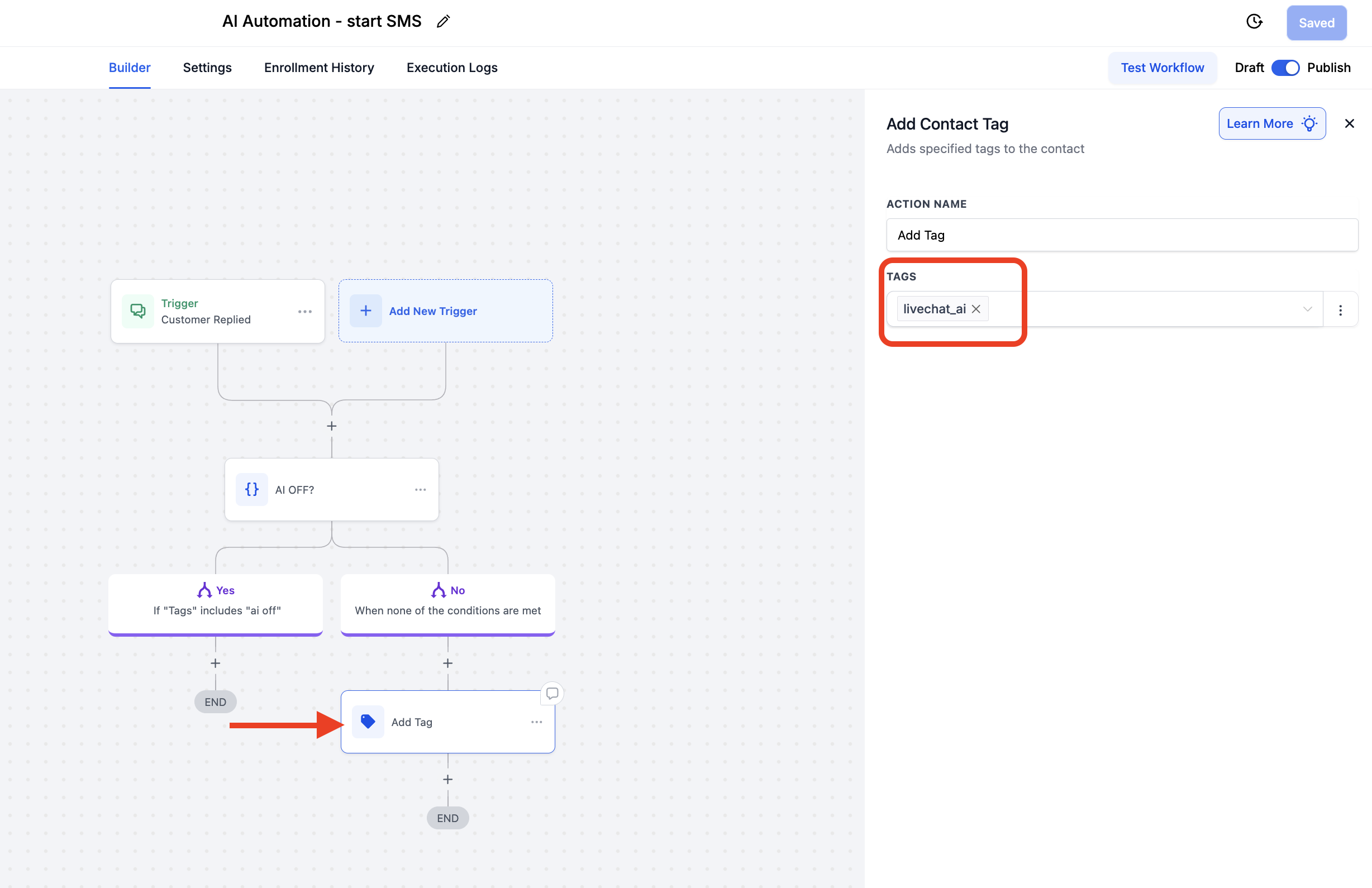
To disable AI chat for a contact:
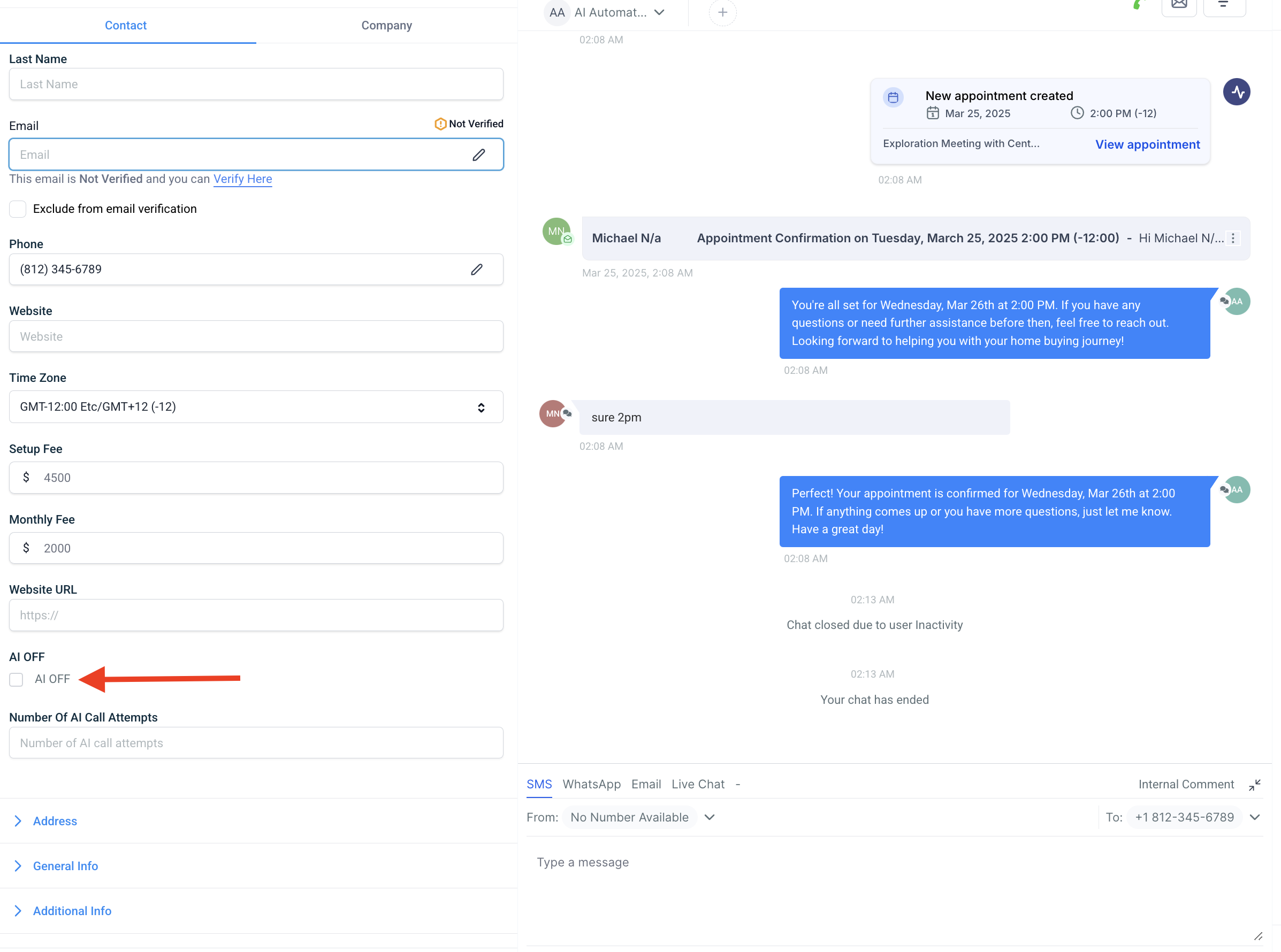
Simply remove the Active Tag from their profile, click the “AI OFF” checkbox, or add the tag “AI OFF” to the contact profile:
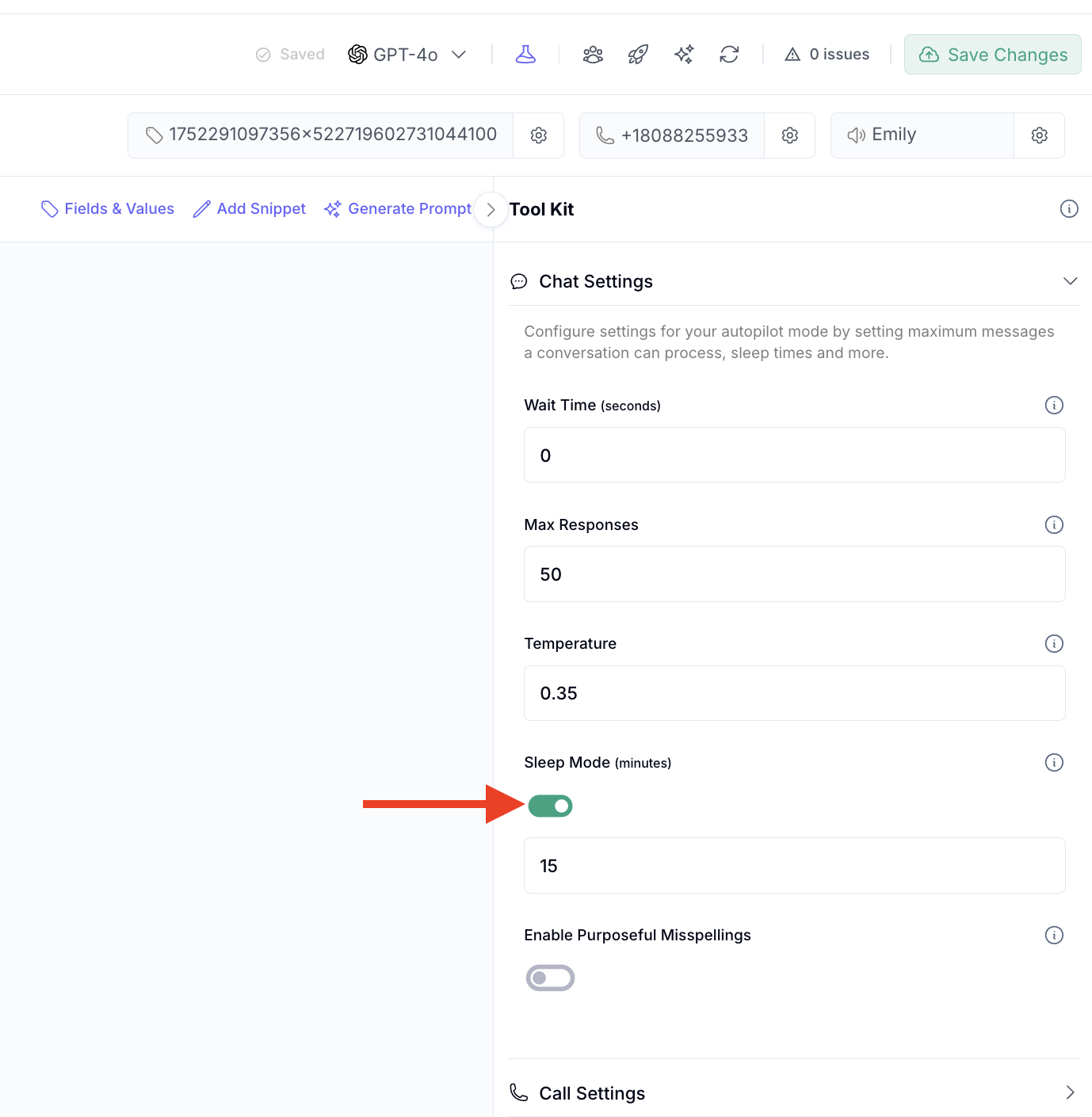
Enable the Sleep Mode Toggle in your assistant settings.
Set a pause duration (e.g., 10 minutes).
When a user or workflow sends a manual message, the AI will temporarily pause responses, allowing humans to reply without interruption.
Q: What are Active Tags?
A: Active Tags are trigger tags you assign to an AI Assistant. When a message comes in and that tag is present on a contact, the AI knows it should respond.
Q: Can I use the same tag across different automations?
A: Yes! Active Tags are reusable. You can change the assistant assigned to a tag without needing to reconfigure your workflows.
Q: What happens if a contact doesn’t have any Active Tags?
A: The AI will not respond, but the conversation will still be logged and saved for memory/context.
Q: Can I toggle AI on or off mid-conversation?
A: Yes. You can:
Add a tag to turn AI on
Remove the tag to turn AI off
Use Sleep Mode to temporarily pause the AI for a specific time
Q: Will the AI interfere if a human is replying?
A: Not if you’re using Sleep Mode. When a human or workflow message is sent, the AI will wait before resuming, preventing overlap or confusion.
