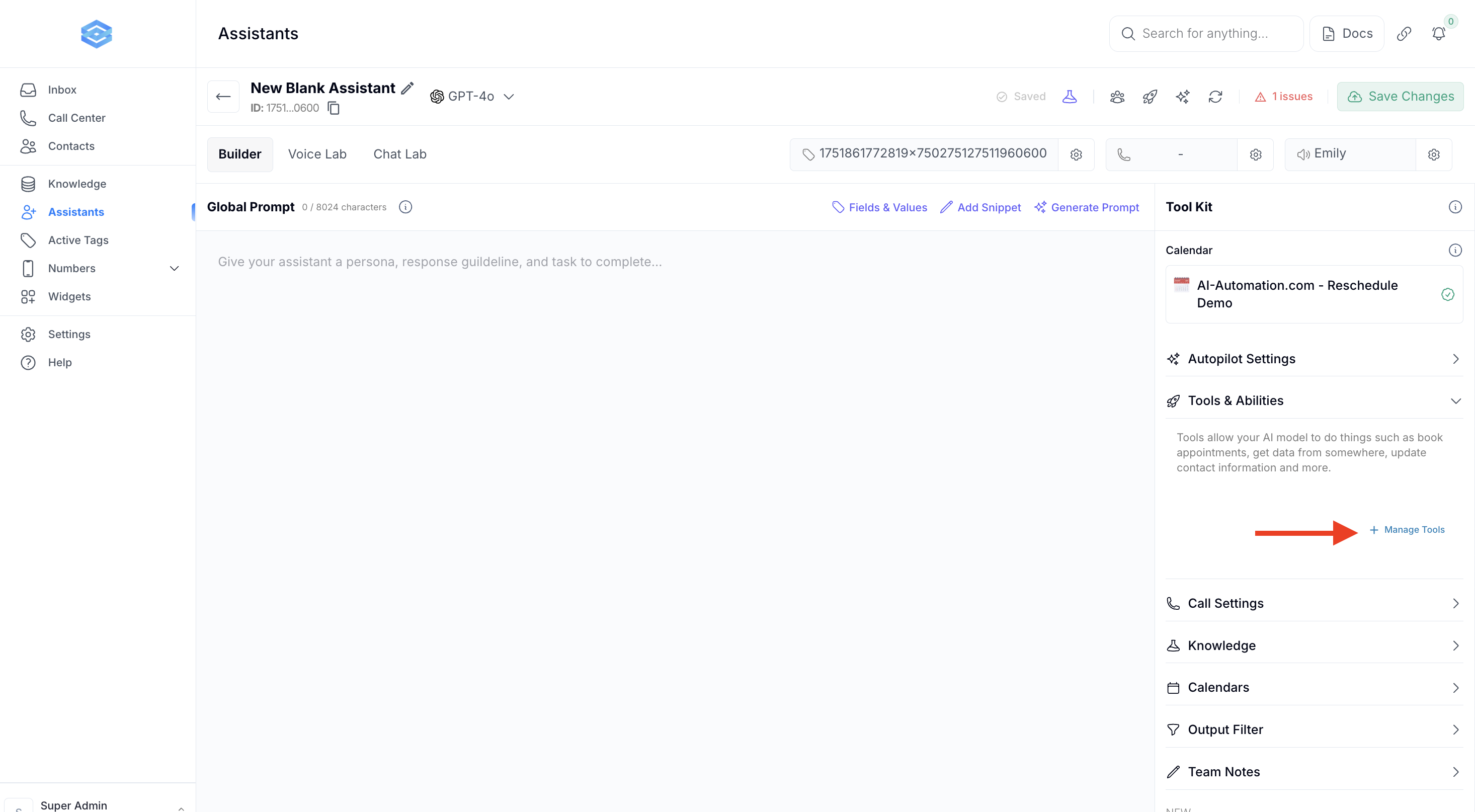
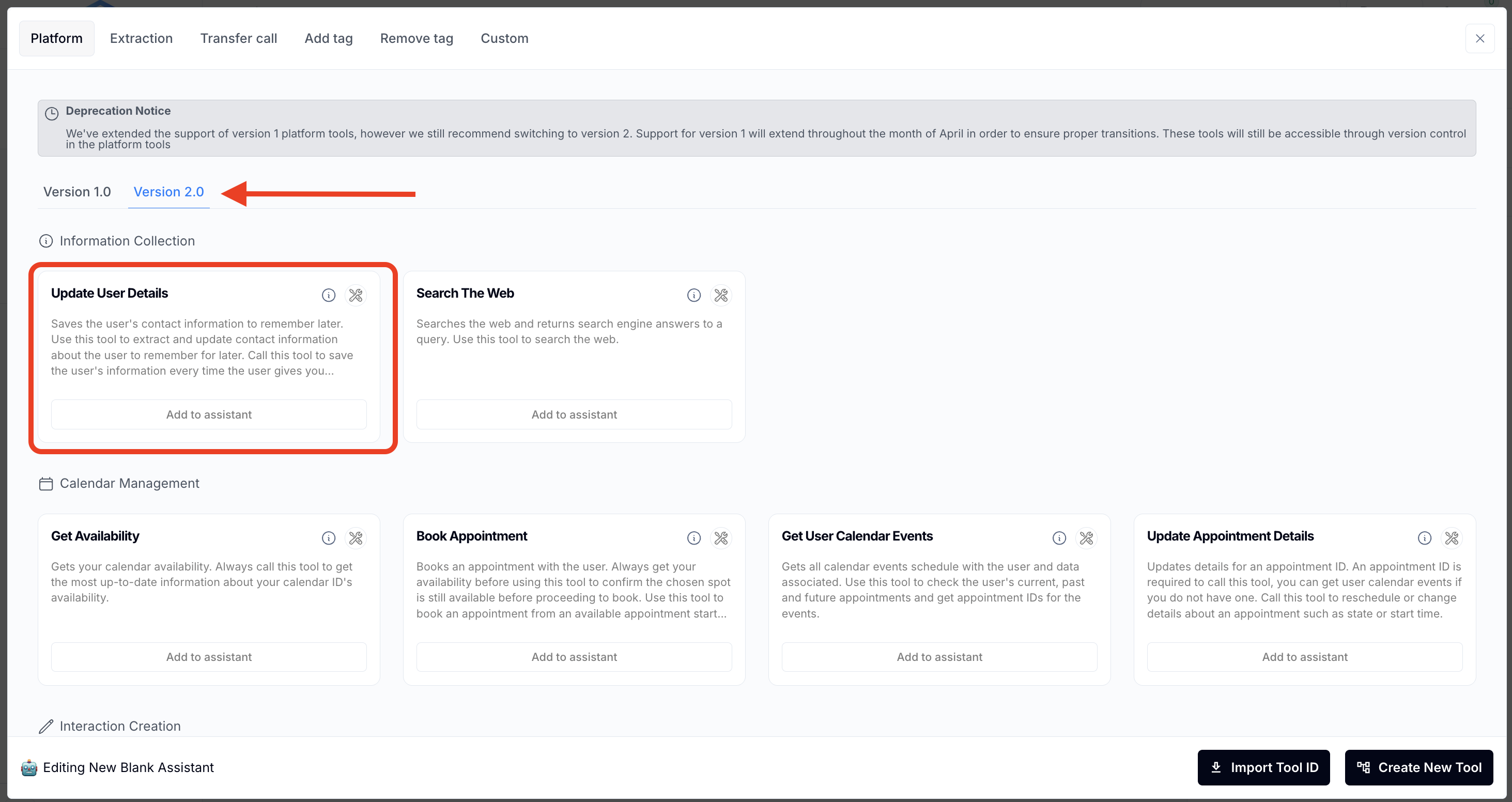
The Update User Detail feature allows your AI assistant to automatically update contact information in your Go High Level (GHL) CRM during or after a call. By using a structured prompt, the AI can push updated details—like name, email, phone, or custom fields—directly into the contact record, keeping your CRM accurate and up to date without manual input.
“Always collect users Full name, Email and phone number before checking for appointment slots. Make sure you read it back to them the same way they said it, for example read the email and phone number back to them the same way. Then confirm with the user you have it correct and wait for response. Use the tool: update_user_details to save the info to the CRM.”
Q: How does the AI update user details in GHL?
A: The AI uses a prompt structure that sends updated user data to GHL via API or workflow. This includes fields like name, email, phone number, notes, and custom attributes.
Q: What kind of details can be updated?
A: You can update the main contact fields in GHL, including name, email, phone. if you need to update custom fields please read this update custom fields article.
Q: When should this prompt be used?
A: This is typically used at the beginning of the call or immediately before booking an appointment — once the AI gathers or confirms updated contact information from the user.
Q: Do I need to build a workflow for this?
A: No workflow is required unless you want to trigger additional automations after the update. The prompt alone can send updated data directly into the CRM record.
Q: What if the contact doesn’t already exist in GHL?
A: The AI will create a new contact record in Go High level
