White labeling your portal inside the Centerfy platform. It includes instructions for uploading a logo, customizing brand colors, adding a white label domain, and embedding a documentation page. This ensures your portal reflects your own branding across all client-facing touchpoints.
Go to: https://createassistants.com/portal (this is our grey label URL)
This is your central hub for your Agency Workspace
Navigate to the Branding tab
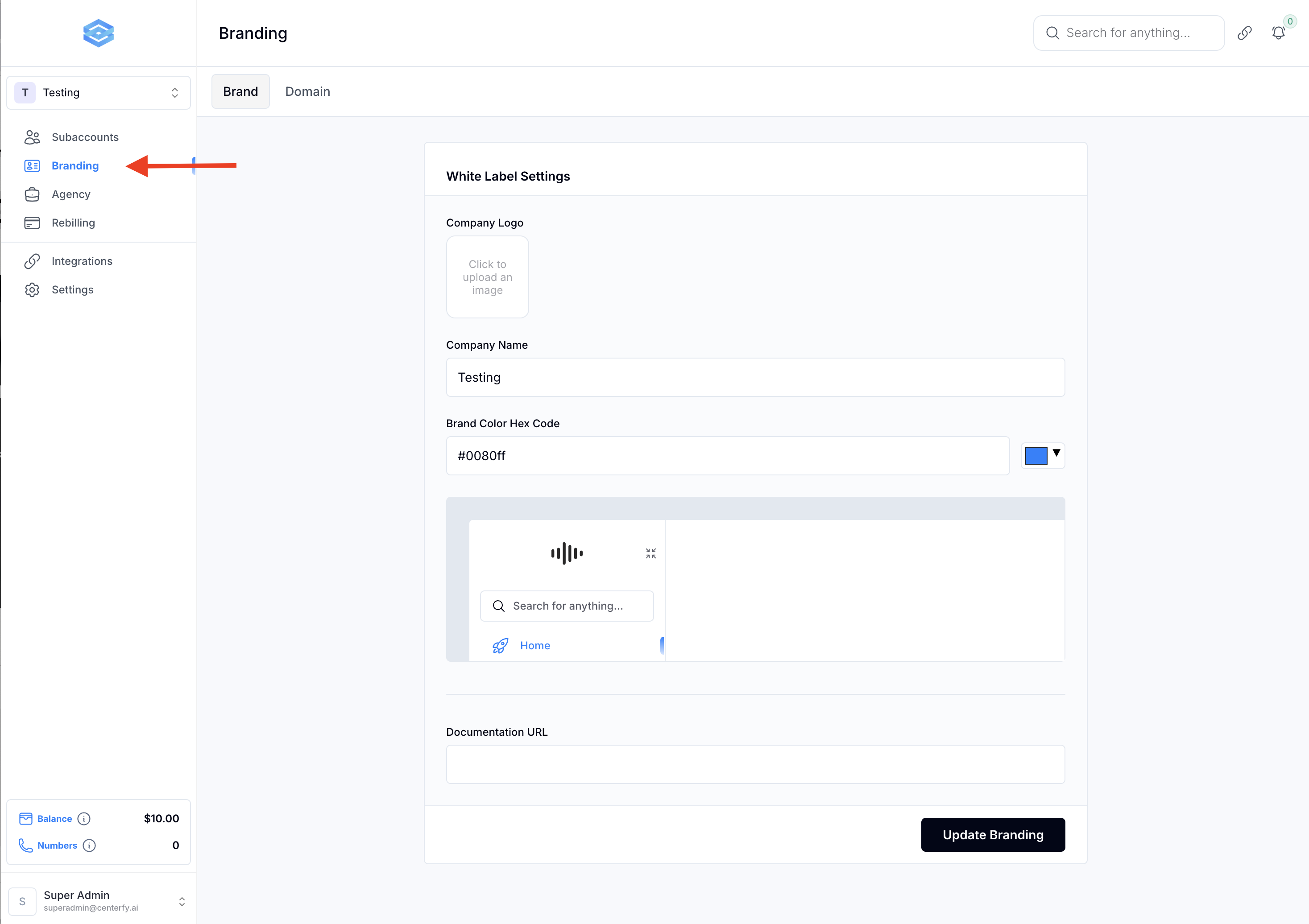
Click on the logo upload section
Upload your logo file (any format or size is accepted)
Once uploaded, it will update dynamically across your portal
Still under the Branding tab
Choose a new primary brand color (e.g., green)
Click Update Branding
The new color applies globally across your workspace and sub-accounts
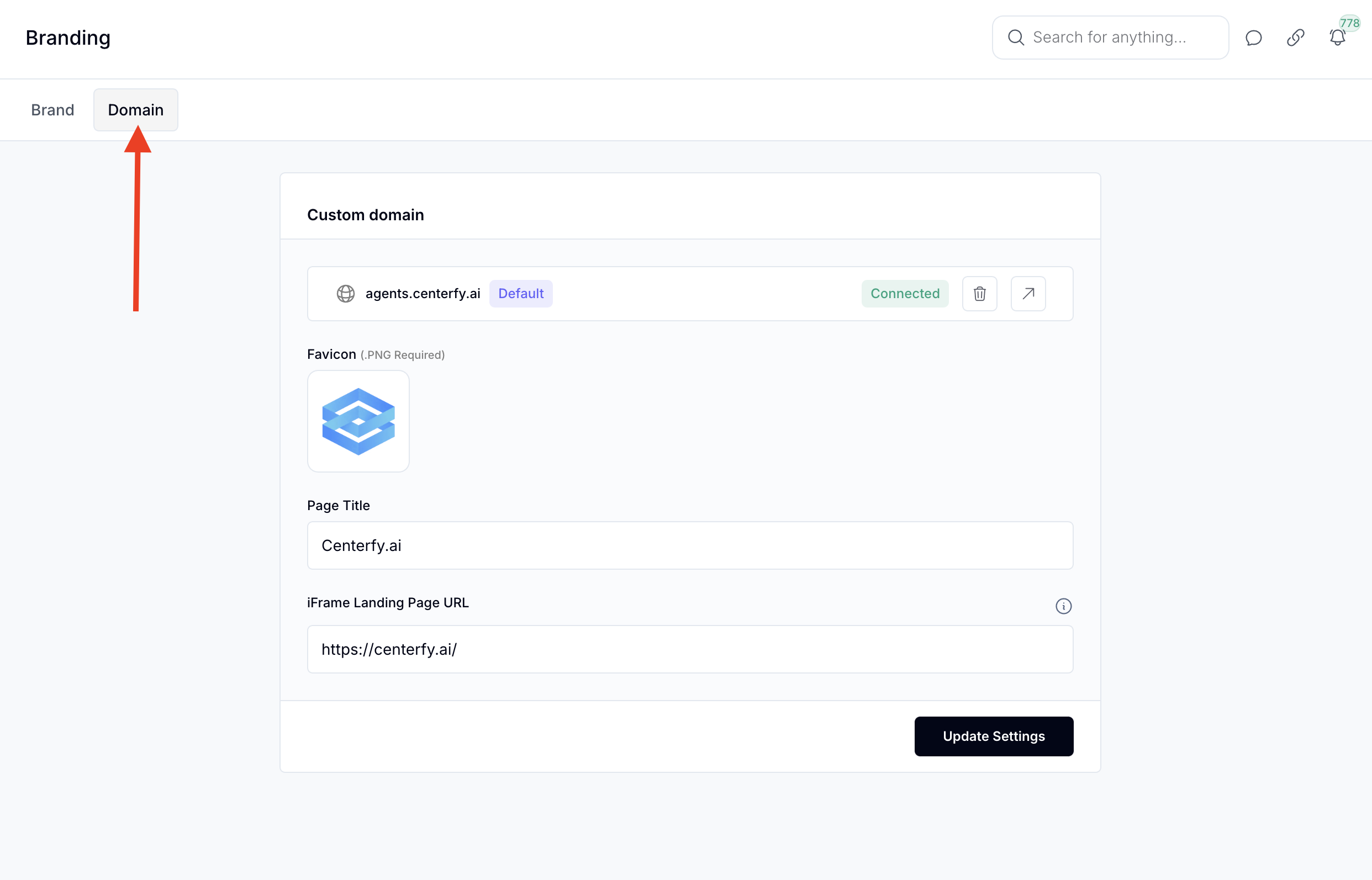
Still in the Branding tab, scroll to the Domain section
Input your custom domain
Set the required A Record in your domain provider (e.g., 24.24.24.24)
Wait for DNS propagation and confirm the domain is connected
Customize:
Favicon
Page title
iFrame embed (this is the page that users will see if they access your custom domain)
In the Branding tab, find the hidden option for documentation
Paste the link to your documentation page
Click Update Branding
Sub-accounts will now see a new "Docs" button that links to your ‘help’ page
Q: What file types are supported for logos?
A: PNG, JPEG, GIF — any image format.
Q: Do I need a specific logo size?
A: No, any size works. Square is recommended but not required.
Q: Can I embed a landing page?
A: Yes, you can use an iframe to embed custom landing pages.
Q: Is the documentation button visible to all users?
A: Only if a URL is provided — then it appears in the sub-account view.
